
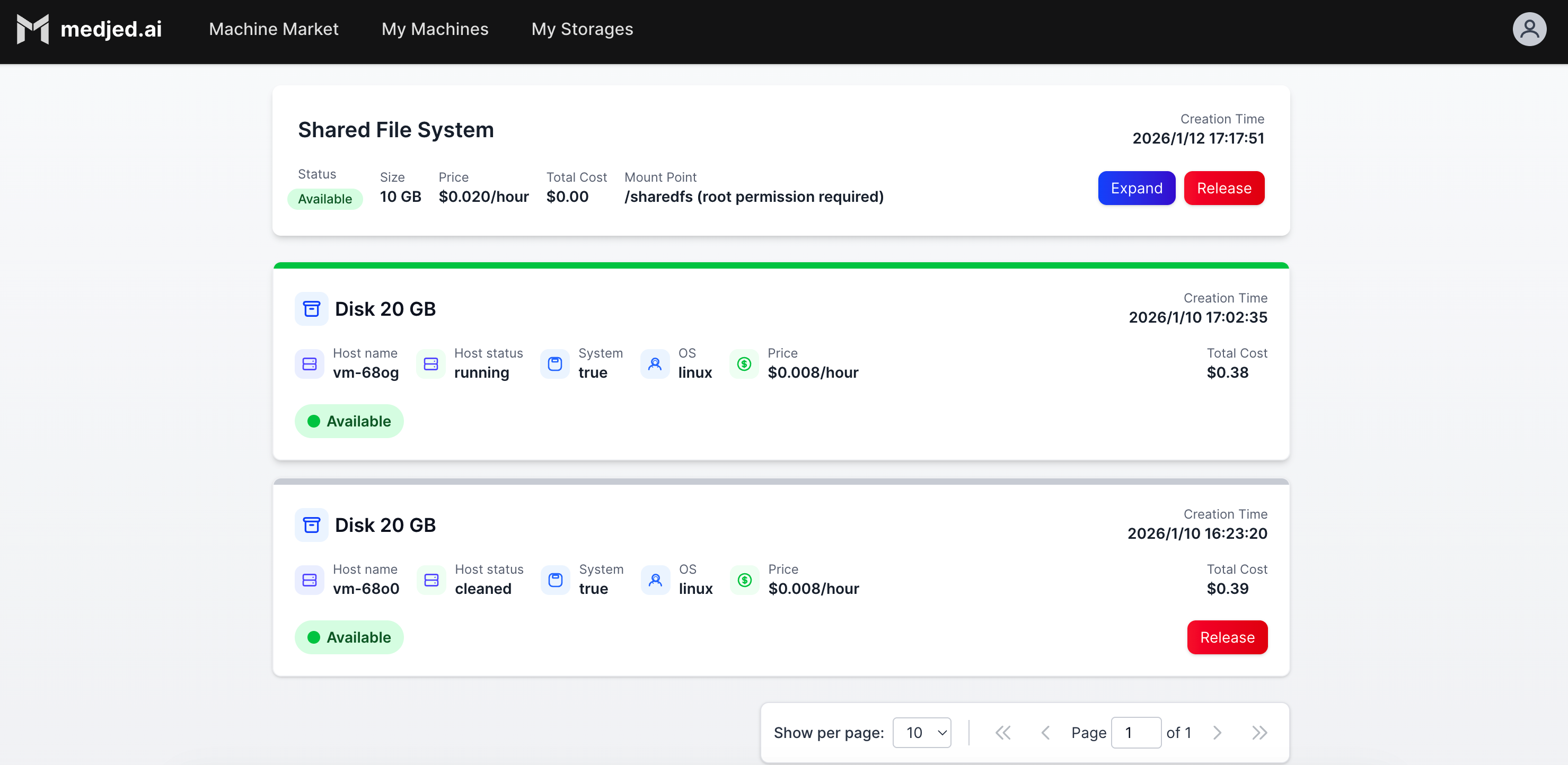
Medjed AI provides two primary storage options for your compute instances: Disk and SharedFS. This guide explains the features, use cases, and billing implications of each storage type.
Storage Types
Section titled “Storage Types”Disk storage provides persistent block storage for your GPU instances. When you provision a GPU instance, you can attach a disk that persists independently of the instance state.
Disk States
Section titled “Disk States”Disks have two primary states:
-
Attached State
- When the associated GPU instance is running
- Storage is available for immediate use by the instance
- Billed at the standard disk storage rate
-
Detached State
- When the associated GPU instance is released
- Storage remains persistent and retains all data
- Continues to be billed at the standard disk storage rate
- Content can be migrated to new GPU instances
Important Billing Note
Section titled “Important Billing Note”- When you release a GPU instance, you have the option to release the associated disk simultaneously
- If you do not release the disk during instance release, the disk enters the detached state and continues to incur charges
- To stop disk charges, you must explicitly release the disk from the Storage Management page
Disk Benefits
Section titled “Disk Benefits”- Persistent Data: All system configurations, installed software, and data are retained when the disk is detached
- Fast Reattachment: Quickly reattach existing disks to new GPU instances, eliminating setup time
- Cost Efficiency: Reuse existing disks with pre-configured environments instead of recreating them
- Data Security: Retain critical data independently of instance lifecycles
SharedFS
Section titled “SharedFS”SharedFS provides network-attached shared storage that can be accessed by multiple GPU instances simultaneously. This is ideal for collaborative workflows or when you need to share large datasets across instances.
Key Features
Section titled “Key Features”- Multi-instance Access: Share data across multiple GPU instances
- High Performance: Optimized for large file transfers and parallel access
- Scalable Capacity: Adjust storage capacity based on your needs
- Centralized Management: Manage all shared storage from a single interface
Storage Billing
Section titled “Storage Billing”| Storage Type | Billing Model | Notes |
|---|---|---|
| Disk | Per GB per hour | Charged regardless of instance state (attached or detached) |
| SharedFS | Per GB per hour | Charged based on total provisioned capacity |
Getting Started with Storage
Section titled “Getting Started with Storage”Provisioning Storage
Section titled “Provisioning Storage”- Disk Storage: Automatically provisioned when you create a GPU instance
- SharedFS: Provision separately from the Storage Management page
Managing Storage
Section titled “Managing Storage”- View Storage: Access the Storage Management page to view all your disks and SharedFS volumes
- Release Disk: Select the disk and click “Release” to stop billing for detached disks
- Attach Disk: Select an existing disk when creating a new GPU instance
Best Practices
Section titled “Best Practices”- Release Unused Disks: Always release disks you no longer need to avoid unnecessary charges
- Use SharedFS for Collaboration: Share data across teams using SharedFS instead of duplicating data on multiple disks
- Backup Critical Data: Regularly backup important data from disks to external storage
- Size Storage Appropriately: Provision only the storage capacity you need to optimize costs
Storage Limits
Section titled “Storage Limits”| Storage Type | Default Limit | Maximum Limit |
|---|---|---|
| Disks per User | 10 | 100 (with request) |
| SharedFS Volumes per User | 5 | 20 (with request) |
| Maximum Disk Size | 10TB | 100TB (with request) |
| Maximum SharedFS Size | 50TB | 500TB (with request) |
Troubleshooting
Section titled “Troubleshooting”Cannot Attach Disk to Instance
Section titled “Cannot Attach Disk to Instance”- Issue: Error when attaching a disk to a new GPU instance
- Possible Causes:
- Disk is already attached to another instance
- Instance type does not support the disk size
- Disk is in a failed state
- Solution: Verify the disk status and compatibility with your instance type
Unexpected Storage Charges
Section titled “Unexpected Storage Charges”- Issue: Charges for disks you thought were released
- Possible Causes:
- Disk was not released when the GPU instance was released
- Multiple disks are provisioned under your account
- Solution: Review the Storage Management page to identify and release unused disks